Scheduled VOD channels
The scheduled VOD channel mode allows you to schedule VODs from your JWP property to play at specific times using a drag-and-drop interface.
Creating a scheduled VOD channel
See Creating a scheduled VOD channel.
Updating the schedule
You can make changes to the schedule using the interface at https://app.fast.jwp.services.
For details on logging into the Pop-up Channels front-end, please see Accounts.
Once you are logged in, you can select your channel from the drop-down at the top of the page.
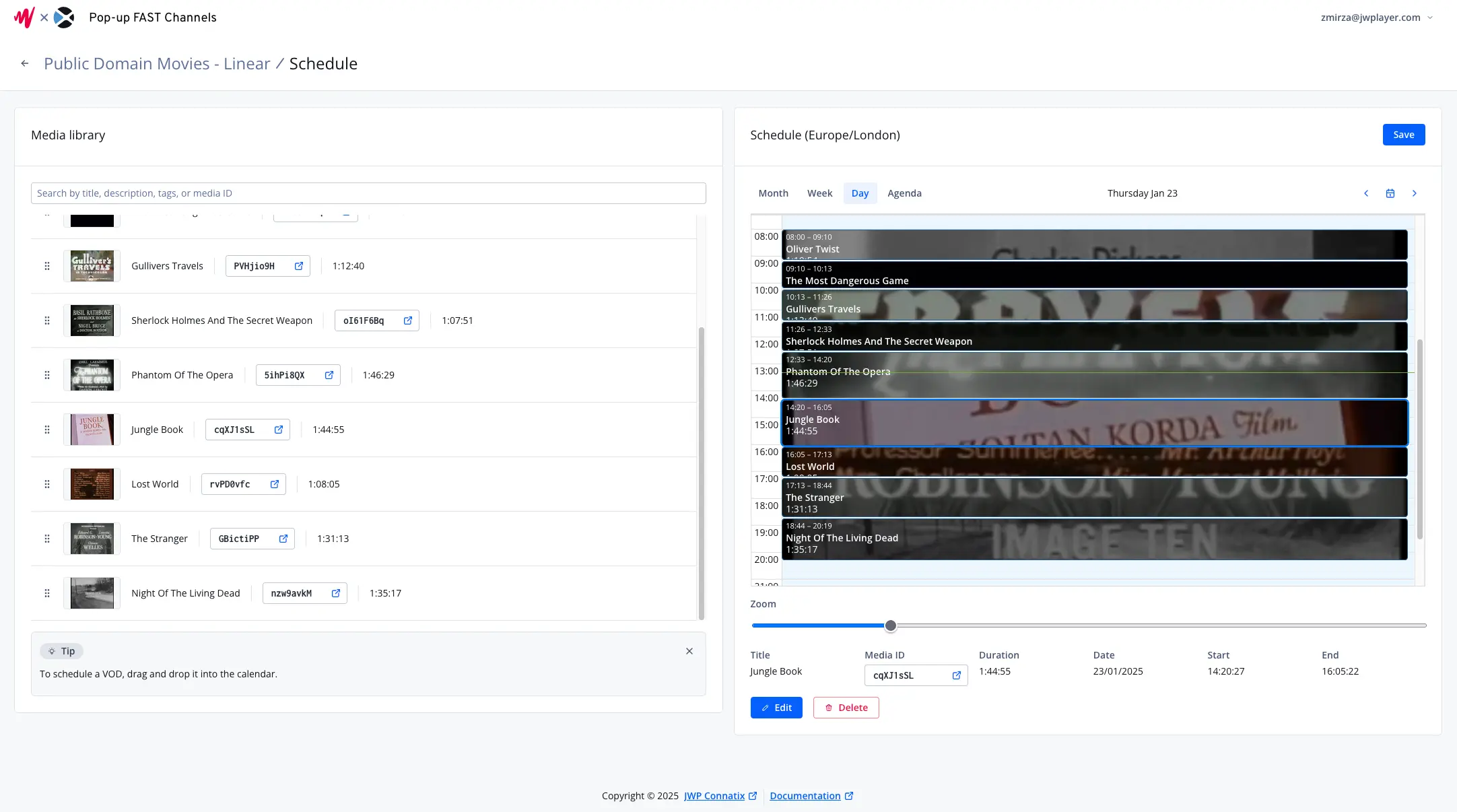
You should then see a list of VODs from your JWP property on the left. You can use the search bar to find the VOD you are looking for.
To schedule a VOD, drag and drop it into the calendar on the right at the time you want the VOD to play.
To make precise changes to the start time of a VOD, click the VOD in the calendar and click "Edit". A modal will be shown that will allow you to set the start time and date.
To remove a VOD from the schedule, click the VOD in the calendar and then click "Delete".
If a VOD is currently playing, you cannot delete it or change its start time.
Once you are happy with your schedule, click "Save" to save your changes. This will update your channel to use the schedule you have created.
The schedule will be shown in the timezone configured for your user. See timezones for details.