Channel management
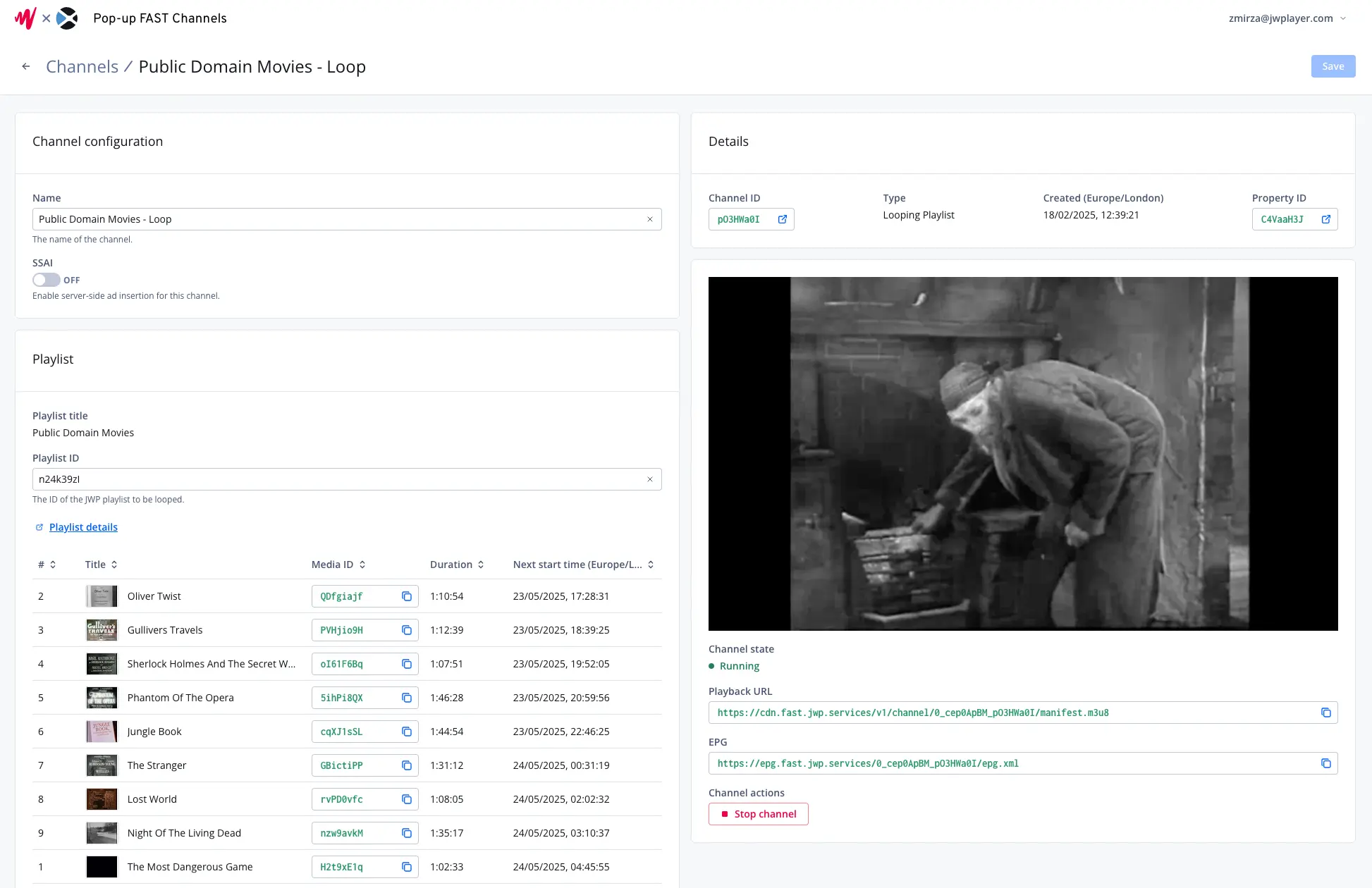
Using the Pop-up Channels front-end, you can create, preview, update and delete your channels.
Creating a channel
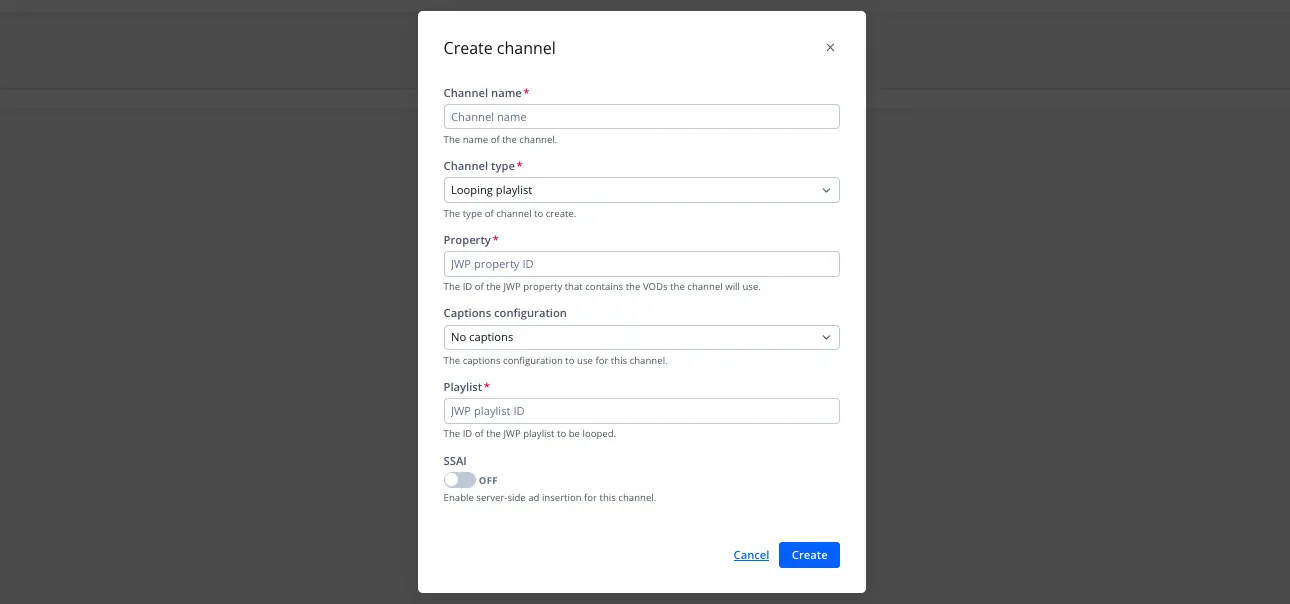
In the Pop-up Channels dashboard, you can easily create a looping playlist or scheduled VOD channel.
When you create a channel, a media item containing the HLS stream created in your JWP property, allowing you to seamlessly integrate with your apps. This media item will have the same ID as the channel.
Looping playlist
To create a looping playlist channel:
- Navigate to the channels page of the Pop-up Channels front-end
- Click the "Create channel" button in the top right
- Under "Channel name", enter a channel name
- Under "Channel type", choose "Looping playlist"
- Under "Property", enter the ID of the JWP property that your content is on
- Under "Captions configuration", select the captions configuration to use, or "No captions" if the channel should not have captions
- Under "Playlist", enter the ID of the JWP playlist you would like to use
- Can be a manual or dynamic playlist
- The playlist must be in the same property as your channel
- If you would like to enable SSAI:
- Under "SSAI", click the toggle to "on"
- Under "Ad Config", enter the ID of your JWP ad config
- Under "Ad Slate", enter the media ID of a JWP VOD to use as a slate. Please note:
- The length of this slate will determine the length of your ad breaks.
- The ad slate must be in the same property as your channel.
- Click "Create" to create the channel
Scheduled VOD
To create a scheduled VOD channel:
- Navigate to the channels page of the Pop-up Channels front-end
- Click the "Create channel" button in the top right
- Under "Channel name", enter a channel name
- Under "Channel type", choose "Scheduled VOD"
- Under "Property", enter the ID of the JWP property that your content is on
- Under "Captions configuration", select the captions configuration to use, or "No captions" if the channel should not have captions
- Under "Slate", enter the media ID of a JWP VOD to use as a slate when there is no VOD scheduled
- The slate must be in the same property as your channel
- If you would like to enable SSAI:
- Under "SSAI", click the toggle to "on"
- Under "Ad Config", enter the ID of your JWP ad config
- Under "Ad Slate", enter the media ID of a JWP VOD to use as a slate. Please note:
- The length of this slate will determine the length of your ad breaks.
- The ad slate must be in the same property as your channel.
- Click "Create" to create the channel
Preview a channel
To preview a channel and view its details:
- From the channels page of the Pop-up Channels front-end, click the name of the channel
- You can preview the channel in the player on the right of your screen
Embed a channel
To embed a channel, you can use its HLS playback URL:
- From the channels page of the Pop-up Channels front-end, click the name of the channel
- On the right of the screen under "Playback URL", you can retrieve the HLS playback URL
- You can then use this URL to embed the channel on your website or apps
Channel details
To view or update a channel's details:
- From the channels page of the Pop-up Channels front-end, click the name of the channel
- On the left of your screen you can see:
- Channel name
- Captions configuration
- SSAI toggle
- Ad config ID
- Ad slate
- For looping playlist channels:
- Playlist title
- Playlist ID
- Playlist preview
- For scheduled VOD channels:
- Slate
- Button to access scheduler
- On the right of your screen you can see:
- Channel ID
- Channel type (looping playlist or scheduled VOD)
- Created date in your timezone
- Property ID
- Channel preview
- Channel state (running or stopped)
- HLS playback URL
- SSAI playback URL (if SSAI is enabled)
- EPG URL
The channel name, captions configuration, SSAI settings, playlist ID and slate media ID can be changed on this page. Once you have made any changes you would like to make, you can click "Save" in the top right corner to save your changes.
Start or stop a channel
By default when you create a channel, it will be running. To stop or start a channel:
- From the channels page of the Pop-up Channels front-end, click the name of the channel
- On the right of your screen under "Channel actions", there is a button to start or stop the channel, depending on its current state
Delete a channel
To delete a channel:
- From the channels page of the Pop-up Channels front-end, click the name of the channel
- On the left of your screen there is a button to delete the channel